Configure Search Add-Ons
Search Add-Ons are additional features that can be added to the search page to enhance its functionality and provide a better user experience. These add-ons can include features such as search result diagrams, header actions, and more.
ACTION S9
- Configure the Search Page Result Diagram
-
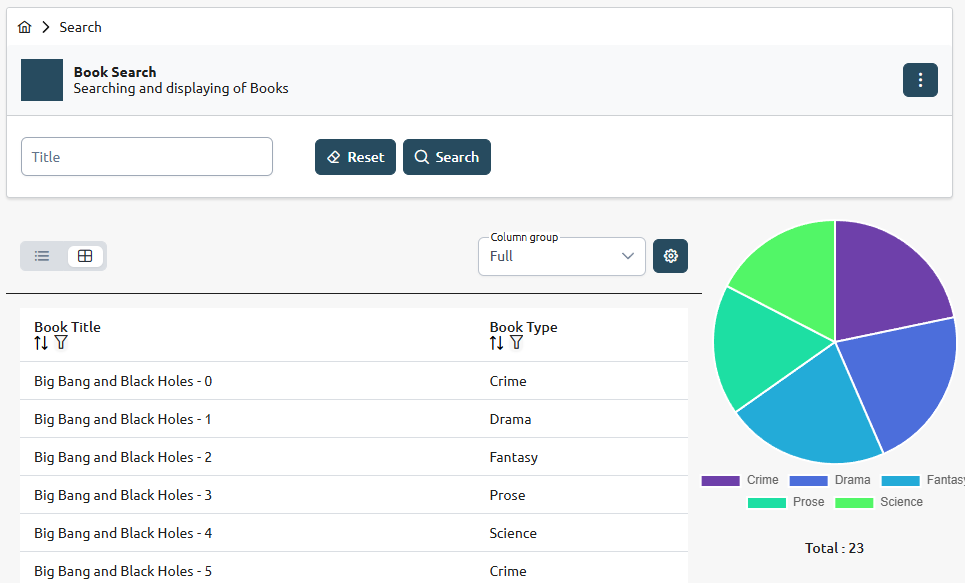
By default, a diagram component is added to display the value distribution of a certain column in the search results. This component is called
GroupByCountDiagramand it groups the values of a column and counts how many times each value appears in the search results. The result is displayed as a diagram, which can be either a bar chart or a pie chart, depending on the configuration.
- Select the column to be displayed
-
The
columnIdis the key of the column to use for the result diagram. You can select any column you defined in the search results.
Template: Column Selection for Diagram
| Directory |
|
| File |
|
ACTION S9 in <resource>-search.component.ts
  // ACTION S9: Select the column to be displayed in the diagram
  this.diagramColumnId = 'id';
  this.diagramColumn$ = this.viewModel$.pipe(map((vm) =>vm.columns.find((e) => e.id === this.diagramColumnId) as DataTableColumn));
Please refer to the GroupByCountDiagram Component for more adaptations.
Example: Book Type Diagram
| Directory |
|
| File |
|
ACTION S9 in book-search.component.ts
  // ACTION S9: Select the column to be displayed in the diagram
  this.diagramColumnId = 'bookType';
  this.diagramColumn$ = this.viewModel$.pipe(map((vm) =>vm.columns.find((e) => e.id === this.diagramColumnId) as DataTableColumn));
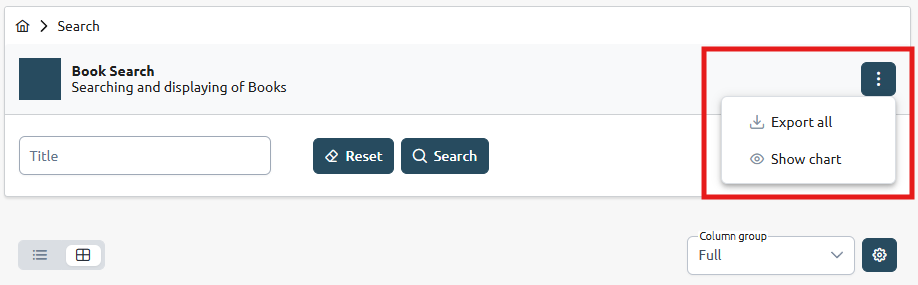
ACTION S10
- Configure Search Header Actions
-
The header of the search page contains action buttons that allow users to perform various operations related to the search functionality. These actions can be customized to fit the specific needs of your application.
Template: Search Header Actions
| Directory |
|
| File |
|
ACTION S10 in <resource>-search.component.ts
  // ACTION S10: Update header actions
  headerActions$: Observable<Action[]> = this.viewModel$.pipe(map((vm) => {
      const actions: Action[] = [
        {
          labelKey: '<%= resourceConstantName %>_SEARCH.HEADER_ACTIONS.EXPORT_ALL',
          icon: PrimeIcons.DOWNLOAD,
          titleKey: '<%= resourceConstantName %>_SEARCH.HEADER_ACTIONS.EXPORT_ALL',
          show: 'asOverflow',
          actionCallback: () => this.exportItems(),
        },
        ...
Please refer to the GroupByCountDiagram Component for more adaptations.
Example: Book Search Header Actions
| Directory |
|
| File |
|
ACTION S10 in book-search.component.ts
  // ACTION S10: Update header actions
  headerActions$: Observable<Action[]> = this.viewModel$.pipe(map((vm) => {
      const actions: Action[] = [
        {
          labelKey: 'BOOK_SEARCH.HEADER_ACTIONS.EXPORT_ALL',
          icon: PrimeIcons.DOWNLOAD,
          titleKey: 'BOOK_SEARCH.HEADER_ACTIONS.EXPORT_ALL',
          show: 'asOverflow',
          actionCallback: () => this.exportItems(),
        },
        ...