Creating a OneCX Application
This guide walks you through the process of creating a simple OneCX Application using the OneCX App Generator and integrating it into your local OneCX environment.
Introduction
- What is a OneCX Application?
-
A OneCX Application is a set of microfrontends and services that together provide specific functionality within the OneCX platform. It typically consists of a user interface (a microfrontend) and backend services that support its operations. A OneCX Application is designed to be modular, scalable, and easily integrable with other applications within the OneCX ecosystem.
See also:-
OneCX Application Concept provides more information about the concept of OneCX Applications.
-
OneCX Application List for a list of existing OneCX Applications with details.
-
A OneCX Application consists typically of the following components.
- Application Components (examplarily for the Hello World app)
-
-
onecx-hello-world-ui ⇒ Microfrontend
The user interface (UI) component that displays the welcome message. -
onecx-hello-world-bff ⇒ Microservice
Backend For Frontend (BFF) service that handles any backend logic required by the UI. -
onecx-hello-world-svc ⇒ Microservice
Backend Service (SVC): A simple service that could be used to log visits to the application (optional for this basic example).
-
In some cases it consists only of a microfrontend without any backend services or only backend services without a UI component.
Prerequisites
Before you begin, ensure you have the following prerequisites in place:
-
A working OneCX Local Environment set up. If you haven’t done this yet, follow the instructions in the OneCX Local Environment Setup.
-
Node.js, npm, nx installed on your development machine.
-
Familiarity with Angular or React, as the microfrontends in OneCX are typically built using these frameworks.
-
You need about 1GB of free disk space and it may take a few minutes to download and set up all necessary dependencies.
Create the UI Component
In this tutorial, we will create a simple OneCX application with Angular called "Hello World" that displays a welcome message to users.
Generate UI Component
First, we will generate the onecx-hello-world-ui using the OneCX App Generator.
-
Open a terminal and navigate to the directory where you want to create your OneCX Application.
-
Run the OneCX App Generator command:
Create a new UI component using the ngrx template:npx @onecx/create-workspace ngrx onecx-hello-world-ui -
Follow the prompts to provide details about your app, such as its name, description, and any specific configurations you want to include.
-
Once the generation process is complete, navigate into your new
onecx-hello-world-uidirectory and update dependencies:cd onecx-hello-world-ui npm install
Fixing UI Component
The generated onecx-hello-world-ui component requires a few adjustments to align with our naming conventions and to ensure proper integration with the backend services.
-
Renaming and fixing OpenAPI file:
-
Navigate to the
src/assets/swagger/folder inside the onecx-hello-world-ui project. -
Rename the directory
swaggertoapi. -
Rename the file
onecx-hello-world-ui-bff.yamltoopenapi-bff.yaml. -
Open the file and replace all occurrences of
onecx-hello-world-ui-bffwithonecx-hello-world-bff. -
Save the changes
-
Navigate back to the
rootfolder of the onecx-hello-world-ui project. -
Open the file
package.jsonand replace all occurrences ofsrc/assets/swagger/onecx-hello-world-bff.yamlwithsrc/assets/api/openapi-bff.yaml. -
Save the changes
-
-
Generate the API client code based on the updated OpenAPI specification:
Generate the API client code:npm run apigen -
Fixing Docker file:
-
Open the
Dockerfilelocated in the root of the onecx-hello-world-ui project. -
Locate the line that sets the
BFF_URLenvironment variable. -
Change the value from
http://onecx-hello-world-ui-bff:8080/tohttp://onecx-hello-world-bff:8080/. -
Save the changes.
-
-
Fixing Proxy configuration:
-
Open the
proxy.conf.jsfile located in the root of the onecx-hello-world-ui project. -
Locate the
targetproperty under the/bffproxy configuration. -
Change the value from
http://onecx-hello-world-ui-bfftohttp://onecx-hello-world-bff. -
Save the changes.
-
-
Fixing the app name throughout the project:
-
In the Webpack configuration:
-
Open the
webpack.config.jsfile located in the root of the onecx-hello-world-ui project. -
Locate the
nameproperty in theModuleFederationPluginconfiguration. -
Change the value from
onecx-hello-world-ui-apptoonecx-hello-world-ui. -
Save the changes.
-
-
In the Typescript configuration:
-
Open the
tsconfig.app.jsonfile located in the root of the onecx-hello-world-ui project. -
Locate the line with
.remote-moduleproperty within thefilessection. -
Change the value from
onecx-hello-world-ui-app.remote.module.tstoonecx-hello-world-ui.remote.module.ts. -
Save the changes.
-
-
In the Bootstrap configuration:
-
Open the
bootstrap.tsfile located in thesrcof the onecx-hello-world-ui project. -
Locate the line with import the UI module.
-
Change the value from
onecx-hello-world-ui-app.remote.module.tstoonecx-hello-world-ui.remote.module.ts. -
Save the changes.
-
-
In the App module configuration:
-
Open the
app.module.tsfile located in thesrc/appof the onecx-hello-world-ui project. -
Locate the line with imports the
PortalCoreModule. -
Change the value from
onecx-hello-world-ui-apptoonecx-hello-world-ui. -
Save the changes.
-
-
Change the remote module file name:
-
Rename the file
onecx-hello-world-ui-app.remote.module.tstoonecx-hello-world-ui.remote.module.tsin thesrc/appof the onecx-hello-world-ui project.
-
-
-
Fixing the module name inside the remote module file:
-
Open the
onecx-hello-world-ui.remote.module.tsfile located in thesrc/appof the onecx-hello-world-ui project.-
Locate the
export classdeclaration. -
Change the value from
OnecxHelloWorldUiModuletoOneCXHelloWorldModule. -
Save the changes.
-
-
In the Bootstrap configuration:
-
Open the
bootstrap.tsfile located in thesrcof the onecx-hello-world-ui project. -
Locate the 2 affected lines where the module is referenced.
-
Change the value from
OnecxHelloWorldUiModuletoOneCXHelloWorldModule. -
Save the changes.
-
-
In the Webpack configuration:
-
Open the
webpack.config.jsfile located in the root of the onecx-hello-world-ui project. -
Locate the exposed module name
-
Change the value from
OnecxHelloWorldUiModuletoOneCXHelloWorldModule. -
Save the changes.
-
-
In the values.yaml:
-
Open the
values.yamlfile located in thehelmdirectory of the onecx-hello-world-ui project. -
Locate the exposed module name
-
Change the value from
OnecxHelloWorldUiModuletoOneCXHelloWorldModule. -
Save the changes.
-
-
Change the app title:
-
Open the
index.htmlfile located in thesrcof the onecx-hello-world-ui project. -
Locate the
<title>tag. -
Change the value from OnecxHelloWorldUi App UI to OneCX Hello World UI.
-
Save the changes.
-
-
-
Fixing the routing path :
-
Open the
values.yamlfile located in thehelmdirectory of the onecx-hello-world-ui project. -
Locate the
pathproperty under theroutingconfiguration. -
Change the value from
/mfe/onecxHelloWorldUi/to/mfe/helloworld/. -
Save the changes.
-
Your onecx-hello-world-ui component is now set up.
Testing UI Component
After developing your UI component, it’s important to test it locally to ensure everything works as expected before deploying it within your OneCX environment.
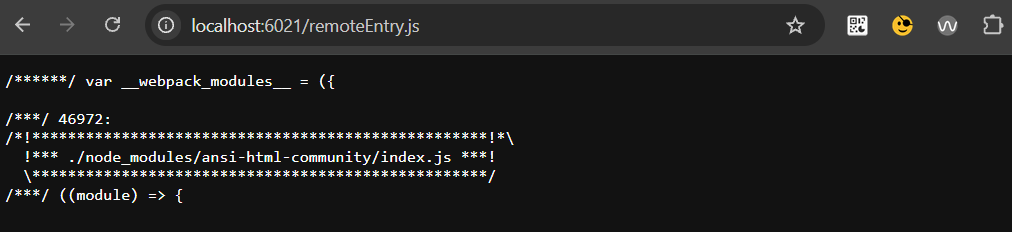
nx serve onecx-hello-world-ui --proxy-config=proxy.conf.jsNow you can see the UI works with accessing the remoteEntry.js via http://localhost:4200/remoteEntry.js.
or alternatively,
npm run start -- --port=6021 --host 0.0.0.0 --disableHostCheck --publicHost=http://localhost:6021This will start the UI component on port 6021, and you can access it at http://localhost:6021/remoteEntry.js.