Running OneCX locally
This guide provides a quick overview of the steps required to run a local OneCX environment. It includes instructions on starting the environment, accessing OneCX in a browser, and stopping the environment when finished.
The following steps assume that onecx-local-env has already been configured and installed according to the installation instructions. If you have not done so yet, please refer to Setting up before proceeding.
Starting OneCX
After setting up a local OneCX environment can be started by running a single command from the root directory of onecx-local-env.
./start-onecx.shThis command starts the minimal set of required Docker services and imports the necessary data for them to function. This process may take several minutes, especially on the first run, as Docker images may need to be pulled.
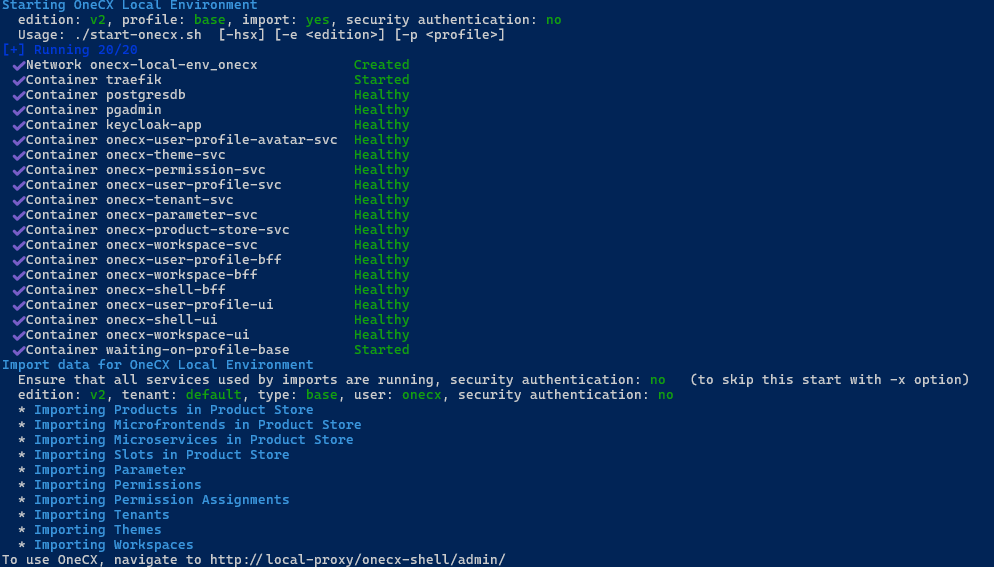
|
The start-onecx.sh script accepts optional options to customize its behavior. A list of available options can be found in the start-onecx.sh documentation or by running
|
Accessing OneCX
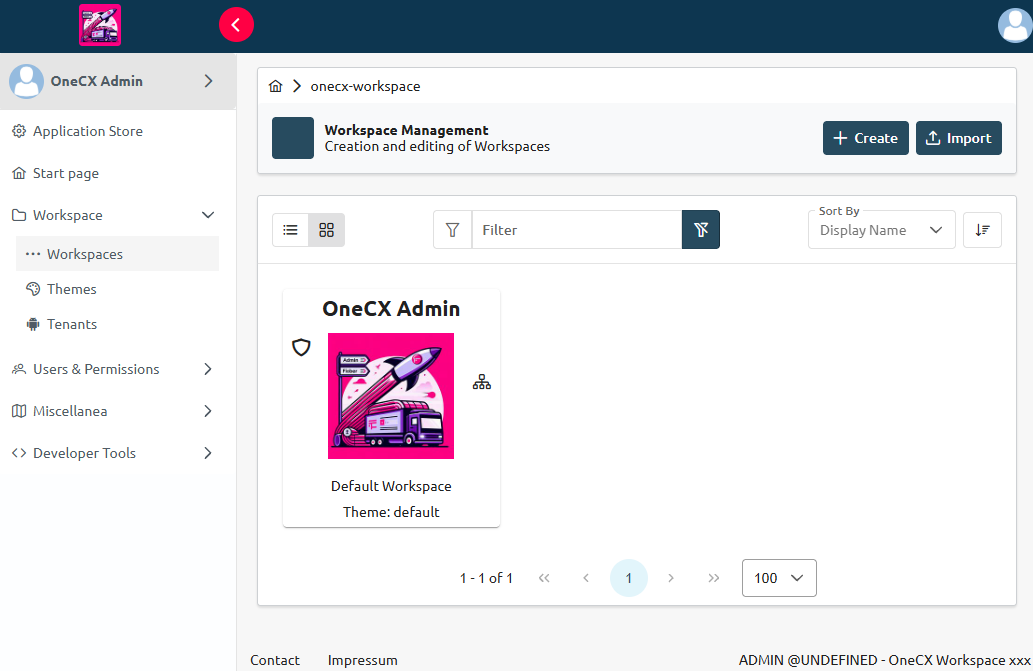
After starting the local environment, OneCX can be accessed in a web browser by navigating to http://onecx.localhost/onecx-shell/admin.
The default login credentials for the admin user are:
-
Username:
onecx -
Password:
onecx
|
If the environment was started with only essential services, not all UI functions are available. This is not a bug, but by design. To start all services, start with
|
Stopping OneCX
When finished using the local OneCX environment, it can be stopped by running the following command from the root directory of onecx-local-env:
./stop-onecx.sh|
The
|
Start OneCX Services
The script start-onecx.sh allows you to start OneCX services using predefined profiles. Alternatively, you can of course start the services directly with Docker Compose. Due to the service dependencies defined in the Docker Compose file, it is sufficient to start only the top-level services; this will automatically start the dependent services as well.
docker compose up -d onecx-theme-uiStop OneCX Services
Since the service dependencies defined in the Docker Compose file only work in one direction, you may also need to take care of the dependent services when stopping services.
docker compose down onecx-theme-uidocker compose down onecx-theme-svc onecx-theme-bff onecx-theme-ui