OneCX Shell UI
What is Shell
Shell is the backbone of OneCX and serves essential data and acts as wrapper for all other applications.
Getting Started
To start developing the OneCX Shell User Interface, you need to set up your local development environment. It’s recommended that you use WSL as the runtime for your application, as shown in the figure below. If you are using a different runtime, please check that you meet the requirements below.
Prerequisites
Before you begin, ensure you have the following installed:
-
Java Development Kit (JDK) version 17
-
Maven build tool
-
Git
-
Docker + Docker Compose
-
Windows Subsystem for Linux (WSL) - recommended
-
NodeJS
Clone the Repository
Start by cloning the required repositories to your local machine using the following command:
git clone https://github.com/onecx/onecx-shell-ui.gitThe repository onecx-shell contains the source code of
the OneCX Shell product.
The repository onecx-shell-ui contains the source code of
the OneCX Shell user interface as part of the product.
Update local DNS resolution
Assuming you are using WSL, updating the local host file for local development allows you to map domain names to specific IP addresses, making it easier to test and debug applications using custom domain names instead of IP addresses. To enable multiple services on the same port, we use traefik as a reverse proxy. A running traefik container is therefore essential for your local setup to route your traffic to the appropriate Docker containers based on hostnames.
It is recommended that the WSL host file and the Windows host file are aligned. Unless you have disabled this behaviour, the WSL host file will be automatically generated from the Windows host file when WSL is restarted.
Starting OneCX dependencies
In a local development environment, Docker Compose is used to define and manage multiple containers as a single application stack. It enables developers to easily start, stop, and configure all the necessary services and dependencies required by OneCX Shell using a simple configuration file.
mkdir onecx-shell
cd onecx-shell
docker compose up -d traefik postgresdb pgadmin keycloak-app-
traefik: Traefik is an ingress controller for Kubernetes deployments that enables dynamic traffic routing and load balancing based on defined rules and configurations. -
postgresdb: PostgreSQL is an open-source relational database management system. It is used as persistence layer for storing and managing data of OneCX products, providing reliability and scalability. -
pgadmin: pgAdmin is an open-source administration and development platform that offers a user-friendly graphical interface for managing and interacting with the local PostgreSQL database. This is optional. -
keycloak: Keycloak is an open-source identity and access management system that simplifies authentication, authorization, and single sign-on for web and mobile applications.
Slot Groups
Slot Groups are a layout mechanism in OneCX Shell UI that organize multiple slots into structured regions. They enable flexible positioning and dynamic loading of remote components within defined areas of the shell interface’s portal viewport.
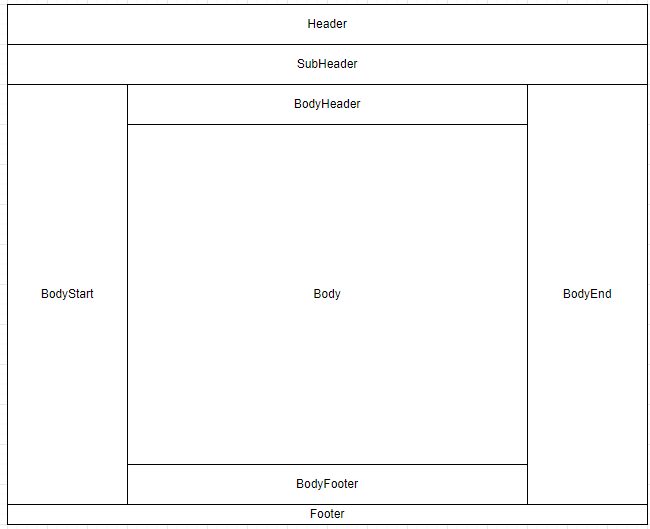
Overview
A Slot Group is a container component that divides content into three distinct regions:
-
start: The beginning region of the slot group
-
center: The middle region of the slot group
-
end: The ending region of the slot group
Each slot group automatically creates three named slots based on its name: <name>.start, <name>.center, and <name>.end. Remote components can be loaded into any of these slots dynamically based on configuration.
Configuration Properties
| Property | Type | Description |
|---|---|---|
|
|
Unique identifier for the slot group. Automatically generates three slots: |
|
|
Controls the flex direction for laying out slots. Default: |
|
|
CSS styles object applied to each individual slot within the group |
|
|
CSS classes applied to each individual slot within the group |
|
|
Input properties passed to all remote components loaded in the slots |
|
|
Output event handlers bound to all remote components loaded in the slots |
|
|
CSS styles object applied to the slot group container element |
|
|
CSS classes applied to the slot group container element |
|
|
CSS styles applied to the remote component wrapper elements |
|
|
CSS classes applied to the remote component wrapper elements |
Usage Example
<ocx-shell-slot-group
  name="onecx-shell-header"
  direction="row"
></ocx-shell-slot-group>
This example creates a horizontal slot group named onecx-shell-header with three available slots:
-
onecx-shell-header.start -
onecx-shell-header.center -
onecx-shell-header.end
Layout Behavior
The slot group uses CSS Flexbox for layout:
-
Row directions (
row,row-reverse): Sets width to 100% and usesjustify-content: space-between -
Column directions (
column,column-reverse): Sets height to 100% and usesjustify-content: space-between
Each slot within the group is configured with:
-
display: flex -
flex-directionmatching the group direction -
align-items: center
Resize Events
The Slot Group Component automatically monitors size changes and publishes resize events to the OneCX Topic event system. This allows remote components to respond dynamically to layout changes.
Event Details:
-
Event Type:
SLOT_GROUP_RESIZED(from@onecx/integration-interface) -
Debounce Time: 100ms
-
Payload:
-
slotName: The name of the slot group -
slotDetails: Object containingwidthandheightproperties
-
Implementation:
The component uses a ResizeObserver to monitor the slot group’s dimensions. When changes occur, they are debounced and published through the EventsPublisher TopicPublisher, making them available to all micro frontends in the shell.
// Remote components can subscribe to resize events
eventsPublisher.subscribe(EventType.SLOT_GROUP_RESIZED, (event) => {
  console.log('Slot group resized:', event.payload.slotName);
  console.log('New dimensions:', event.payload.slotDetails);
});
OneCX Extensions Slot
The onecx-shell-extensions slot is a dedicated slot designed for hosting extension components that enhance Shell UI functionality.
Purpose
The extensions slot provides a standardized integration point for example such as:
-
Utility Components: Tools and helpers
-
Custom Integrations: Third-party or custom micro frontend extensions
Integration
Extension components are registered through the OneCX slot configuration system and loaded dynamically.
Configuration
Extensions are defined in the slot configuration and can be managed through the OneCX Workspace UI or configured in the helm values yaml file.
Each extension component loaded into the onecx-shell-extensions slot receives standard slot inputs and can emit events back to the shell through the OneCX Topic event system.
Shell Toast Remote Component
The Shell Toast component provides a centralized, application-wide notification system for displaying messages across the OneCX Shell and all loaded micro frontends.
Overview
OneCXShellToastComponent is a standalone remote component that can be embedded as a web component. It integrates with the OneCX messaging infrastructure to display toast notifications using PrimeNG components.
Key Features:
-
Centralized message handling for all micro frontends
-
PrimeNG Toast integration
-
Automatic subscription to portal-wide messages
-
Translation support for internationalization
-
Word-wrap styling for long messages
Setup and Configuration
To enable toast messages by using the OneCXShellToastComponent, it must be configured in the onecx-shell-extensions slot. This ensures that the toast container is available globally for all micro frontends.
Configuration Steps:
-
Register the
onecx-shell-extensionsslot in the slot configuration of your workspace -
Assign the
OneCXShellToastComponentto theonecx-shell-extensionsslot -
The component will automatically subscribe to the
PortalMessageServicemessage stream
Once configured in the extensions slot, any micro frontend can send messages through the PortalMessageService, and they will be displayed as toast notifications to the user.
Shell Version Information
The shell supports a range of Angular versions across all environments. Supported package versions in any environment can be checked using the methods described below.
Primary Method: About Page
The preferred method to check shell version information is through the About page in the Shell UI.
The About page can be accessed by appending /onecx-shell/about-shell to your application’s base URL:
<application-base-url>/onecx-shell/about-shell
Examples:
-
Base URL:
https://myDomain.com/admin→ About page:https://myDomain.com/onecx-shell/about-shell -
Base URL:
https://myDomain.com/portal/admin→ About page:https://myDomain.com/portal/onecx-shell/about-shell
The About page displays comprehensive version information for all supported packages and can be accessed in any environment to verify deployed versions.
|
The About page is only available in newer versions of the Shell. If you encounter an error when loading the page, please use the alternative Browser DevTools method described below. |
Alternative Method: Browser DevTools
You can also use the browser’s Developer Tools to access version information:
-
Open your browser’s Developer Tools
-
Navigate to the Console tab
-
Execute the following command:
window['onecxWebpackContainer'] -
Expand
defaultandangular-core
This will display a list of all Angular versions that the shell is supporting. The displayed versions represent the maximum supported versions for each major Angular version - any version less than or equal to the shown version (within the same major) is supported.

Angular - Libs Version Compatibility
The following table outlines the compatibility between OneCX library versions and their corresponding Angular framework versions:
| OneCX Libs | Angular |
|---|---|
v5 |
18 |
v6 |
19 |
v7 |
20 |
v8 |
21 |
| The major Angular version in the application determines which OneCX library version should be used. While all versions within the major are compatible, it is recommended to use the lowest possible OneCX library version that provides the required features and fixes. |
For further details on version compatibility, refer to the following resources:
React - Libs Version Compatibility
The following table outlines the compatibility between OneCX library versions and their corresponding React framework versions:
| OneCX Libs | React |
|---|---|
v8 |
19 |
| The major React version in the application determines which OneCX library version should be used. While all versions within the major are compatible, it is recommended to use the lowest possible OneCX library version that provides the required features and fixes. |
For further details on version compatibility, refer to the following resources: